Skip to content
NOVGEN3D

Online 3D viewer: inspect GLB, GLTF, OBJ, FBX, STL, and PLY files

Inspect, rotate, and evaluate 3D models and skeletal animations directly in your web browser. NovaGen3D's online 3D viewer provides a lightweight, zero-upload inspection workbench for 3D creators, developers, and makers.

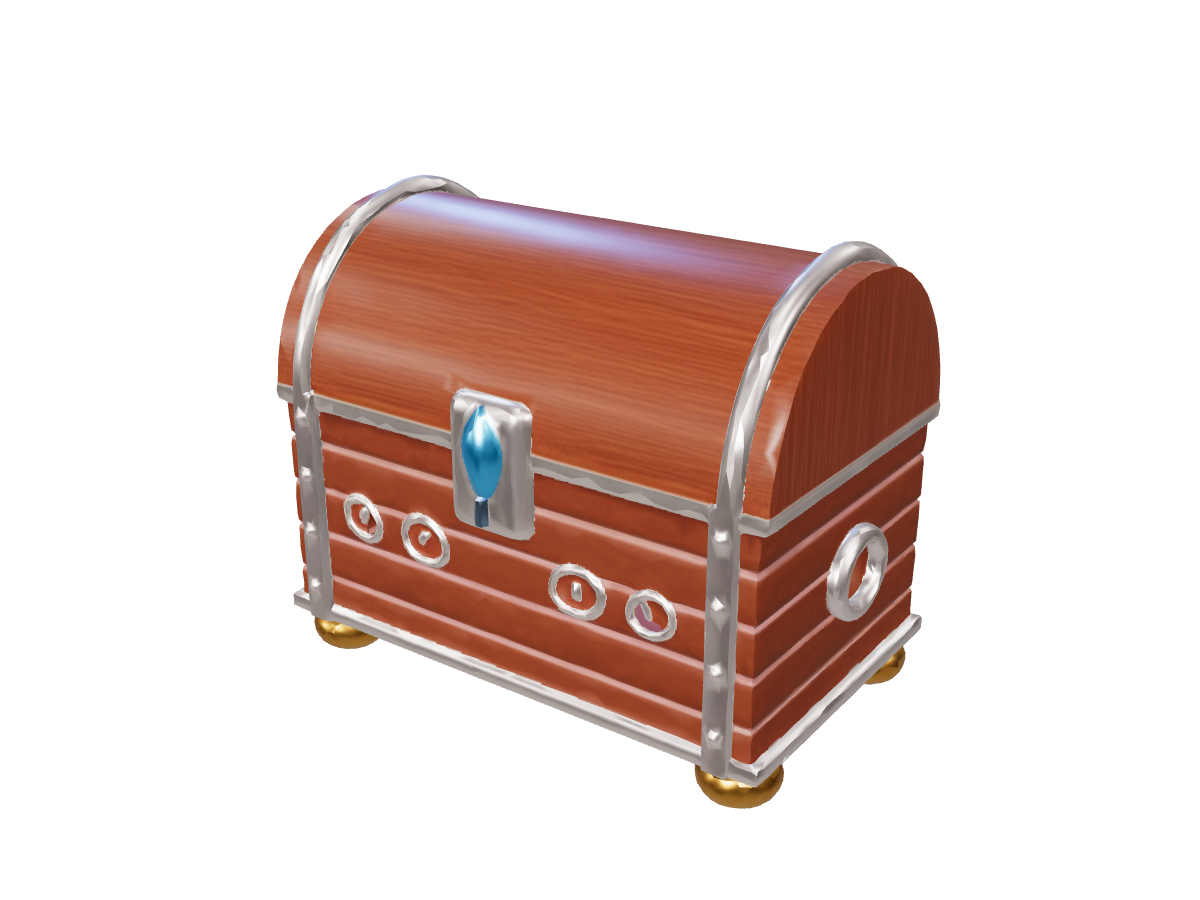
Treasure chest: material and mesh inspection

Drag to orbit, scroll to zoom, and use the pan control to move the view. Arrow keys orbit, plus and minus zoom, and Home resets the camera.

Loading modelProcedural demo

Loading model...

GLB / GLTF / OBJ / FBX / STL / PLY100 MB total

Load your local assets privately: files stay on your hardware, and inspection uses 0 credits. Open the viewer without signing in. Model and PNG screenshot downloads are included in every paid plan.

Supported 3D formats and companion resource handling

The viewer seamlessly parses standalone models as well as multi-file asset bundles:

3D FormatFile Type & ExtensionCompanion Resource Requirements
GLBglTF 2.0 Binary (.glb)Self-contained single file; geometry, textures, and rigs embedded
GLTFglTF 2.0 JSON (.gltf)Select together with referenced .bin buffers and image textures
OBJWavefront OBJ (.obj)Select alongside matching .mtl material file and texture maps
FBXFilmbox Binary (.fbx)Standalone file with embedded or accompanying texture images
STLStereolithography (.stl)Single surface mesh file; visual inspection before print checks
PLYPolygon File Format (.ply)Standalone polygon mesh with embedded vertex colors

Resource limit: Up to 200 files totaling 100 MB per inspection session.

Treasure chest: material and mesh inspection: Original materials

Inspection workbench features

  • Full Camera Navigation: Smooth orbit, pan, zoom, and instant resets to standard orthogonal viewpoints (Front, Top, Right, Perspective).

  • Lighting & Shading Controls: Adjust exposure and environment intensity to inspect reflections and surface appearance.

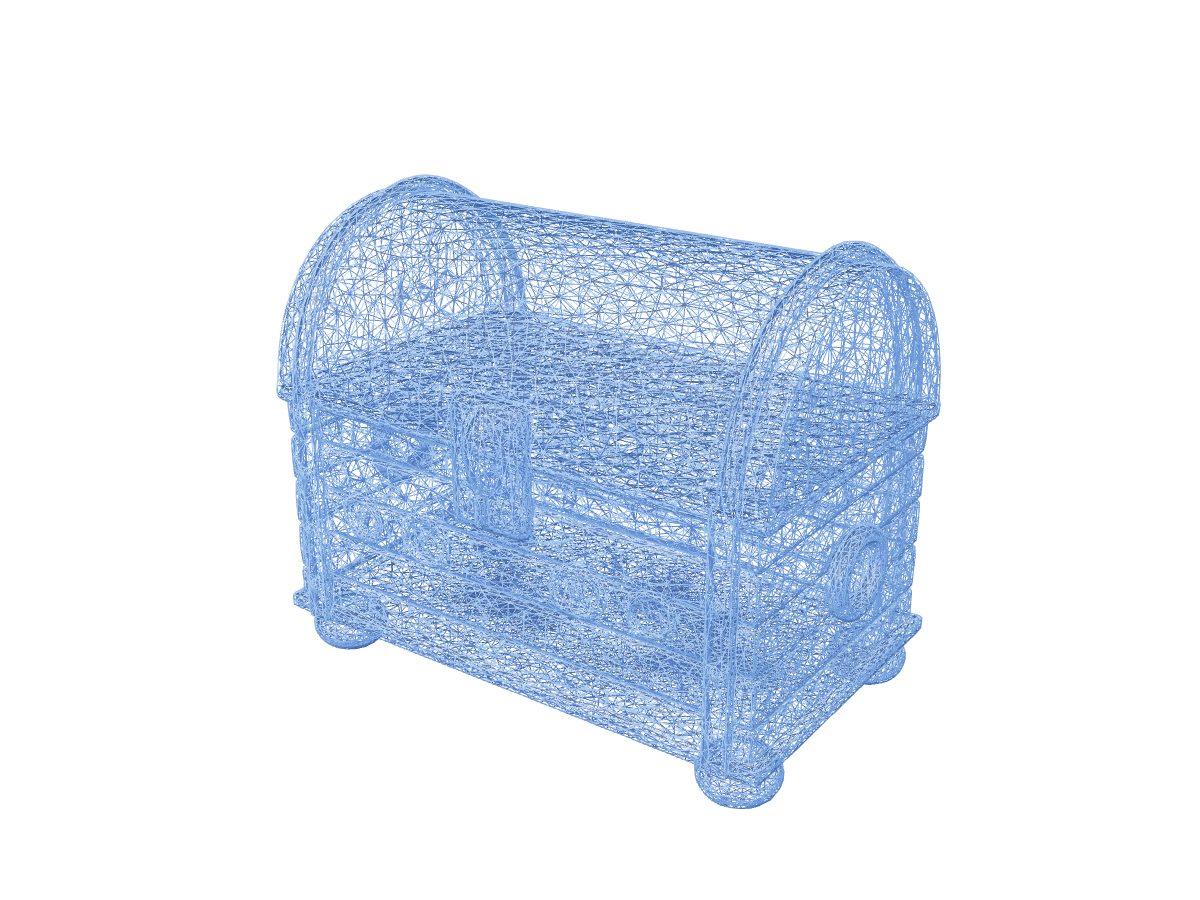
  • Mesh Diagnostics: Inspect real-time face counts, vertex counts, and toggle wireframe overlays to examine edge flow and polygon density.

  • Animation Timeline Scrubbing: For models with embedded skeletal animation clips, scrub the timeline, toggle play/pause, and adjust playback speed.

  • Transparent PNG Snapshots: Capture screenshots at the viewport resolution with alpha transparency for pitch decks, documentation, and design reviews.
How to open multi-file models (OBJ & GLTF)

  1. Highlight all files: When opening your file picker, select the main model file (.gltf or .obj) together with its companion .bin, .mtl, and image files in the same selection.

  2. Local browser resolution: The viewer resolves relative texture paths automatically without uploading anything to the cloud.

  3. Inspect and verify: Confirm all material channels and UV maps render correctly before moving into production.

Treasure chest: material and mesh inspection

Treasure chest: material and mesh inspection: Original materials
Original materials
Treasure chest: material and mesh inspection: Wireframe inspection
Wireframe inspection
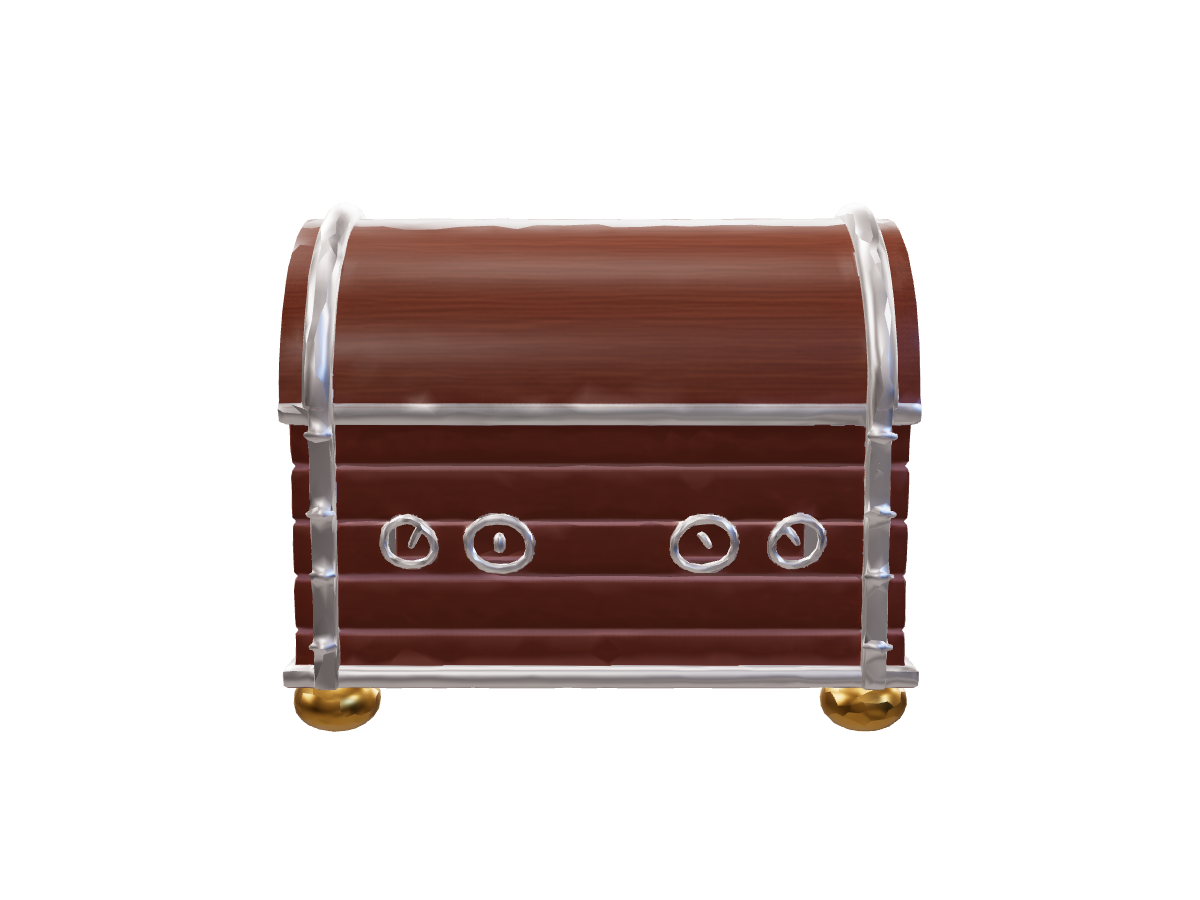
Treasure chest: material and mesh inspection: Rear view
Rear view

Frequently asked questions

Does the 3D viewer upload my private files to any server?

No. When you drag and drop or select files from your computer, they are loaded directly into your browser's local memory. None of your geometry, proprietary designs, or textures are sent to external servers. Viewing needs no sign-in and uses 0 credits. My Assets remains available after signing in.

Do I need a paid plan to download a model or screenshot?

Yes. Local viewing is available without an account, while model exports and PNG screenshot downloads require an active paid plan. Downloads use no additional credits. Choose a plan from the pricing dialog when you click a download control.

Why are my textures appearing gray or black on an OBJ file?

This occurs when the .mtl material file or its associated PNG/JPG texture maps were not selected alongside the .obj file. Make sure you highlight both the .obj, .mtl, and all referenced image files together when opening the model.

Can I play multiple animation clips embedded in my character?

Yes. If your GLB or FBX character contains multiple animation tracks (e.g., Idle, Walk, Jump), a drop-down menu allows you to switch between clips and scrub their individual timelines.

How can I convert my model to another format after viewing?

If you are inspecting a GLB file and want to export it as an STL for 3D printing, an OBJ ZIP for Blender, or a USDZ for iOS AR, jump directly to our client-side GLB Converter.

Open a model